Loading…
⌖
Meerplot™G-code backplot & simulator for CNC lathes · by Meer Rasheed
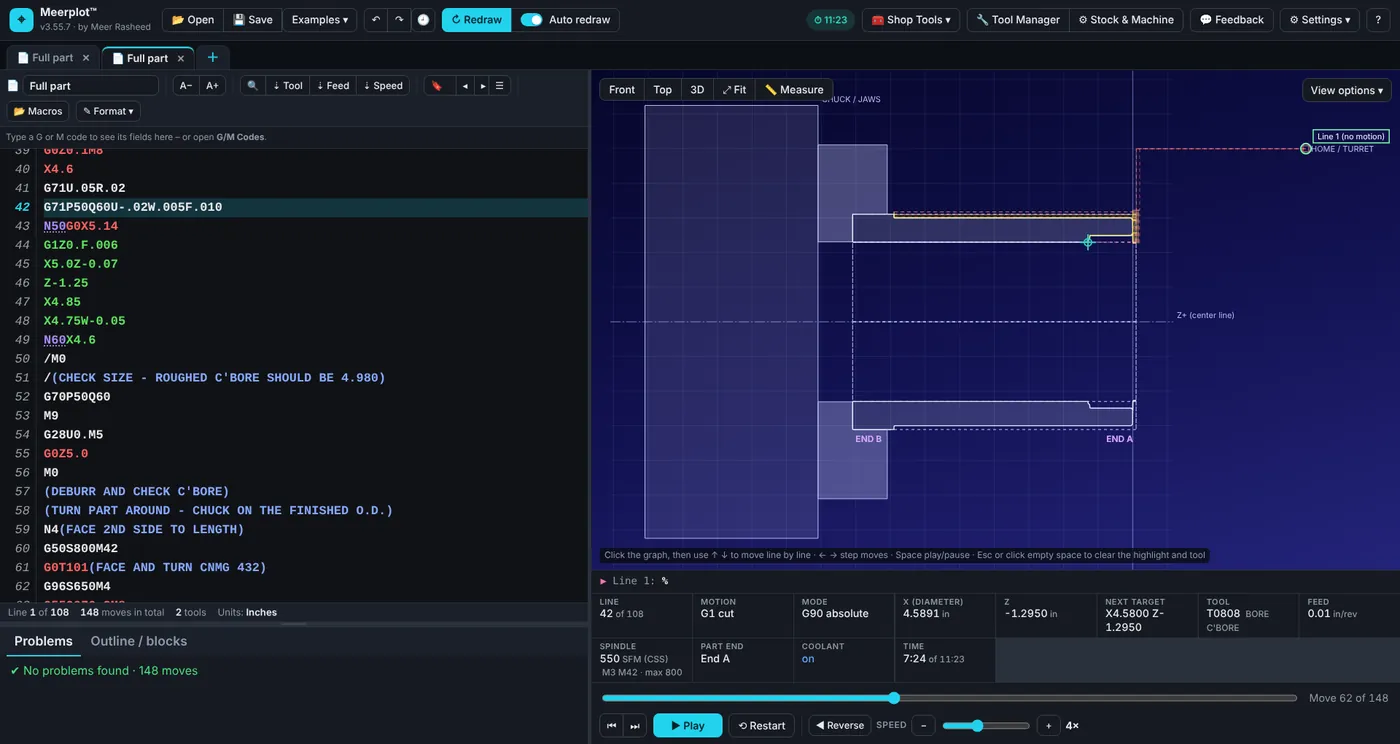
Open a lathe program and Meerplot draws the toolpath over the part, plays it move by move, shows the material coming off, and warns you about crashes and mistakes before you run it on the machine.
⬇ Download Meerplot for WindowsFree · Windows 10 or 11 · nothing to install
How to get started
About two minutes. You only do this once – after that, Meerplot updates itself.
Download it
Click the big Download Meerplot for Windows button above. The file is called Meerplot.exe.
If your browser says the file “isn’t commonly downloaded”, that just means it’s new. Choose Keep (in Microsoft Edge: click ⋯ next to the file → Keep → Keep anyway).
Put it on your Desktop
Open your Downloads folder and drag Meerplot.exe onto the Desktop (or any folder you like).
Keep it somewhere you’ll find it – this one file is Meerplot. There’s nothing else to install.
Unblock it only if you see the box
Right-click Meerplot.exe → Properties. At the bottom, tick Unblock, then click OK.
Windows adds this to every program downloaded from the internet. No Unblock box? Skip this step.
Open Meerplot
Double-click Meerplot.exe. It opens in its own window.
If a blue box says “Windows protected your PC”, click More info, then Run anyway. Windows only asks the first time.
Try an example
Click Examples at the top and pick one, then press ▶ Play to watch it cut. Use 📂 Open to load your own program.
Updates come by themselves: when there’s a new version, a ⟳ Update button shows up at the top – just click it.
What it looks like
Click any picture to see it bigger.
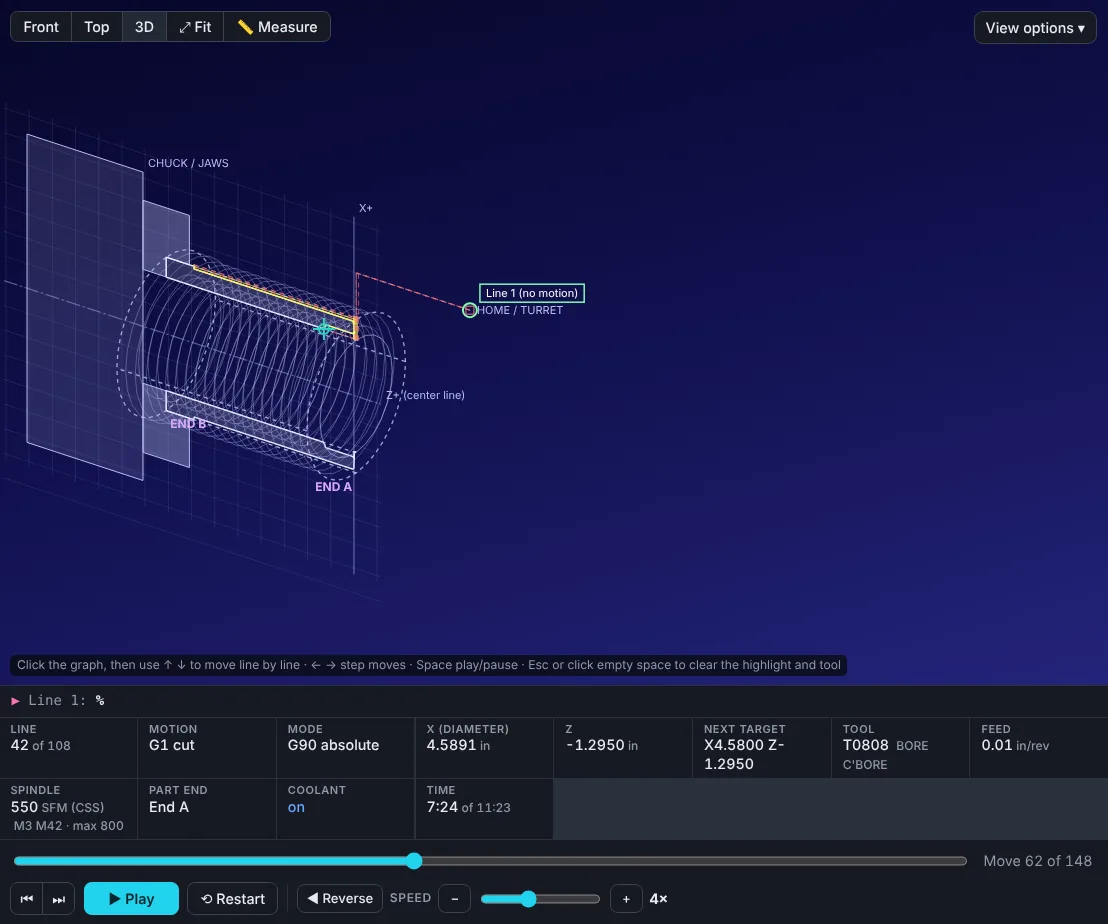
▶ Watch the program run
Front, Top or 3D. Step move by move or press Play, with the chuck, jaws and part drawn to size and the material coming off as it cuts. The panel underneath shows X, Z, feed, speed and the cycle time.
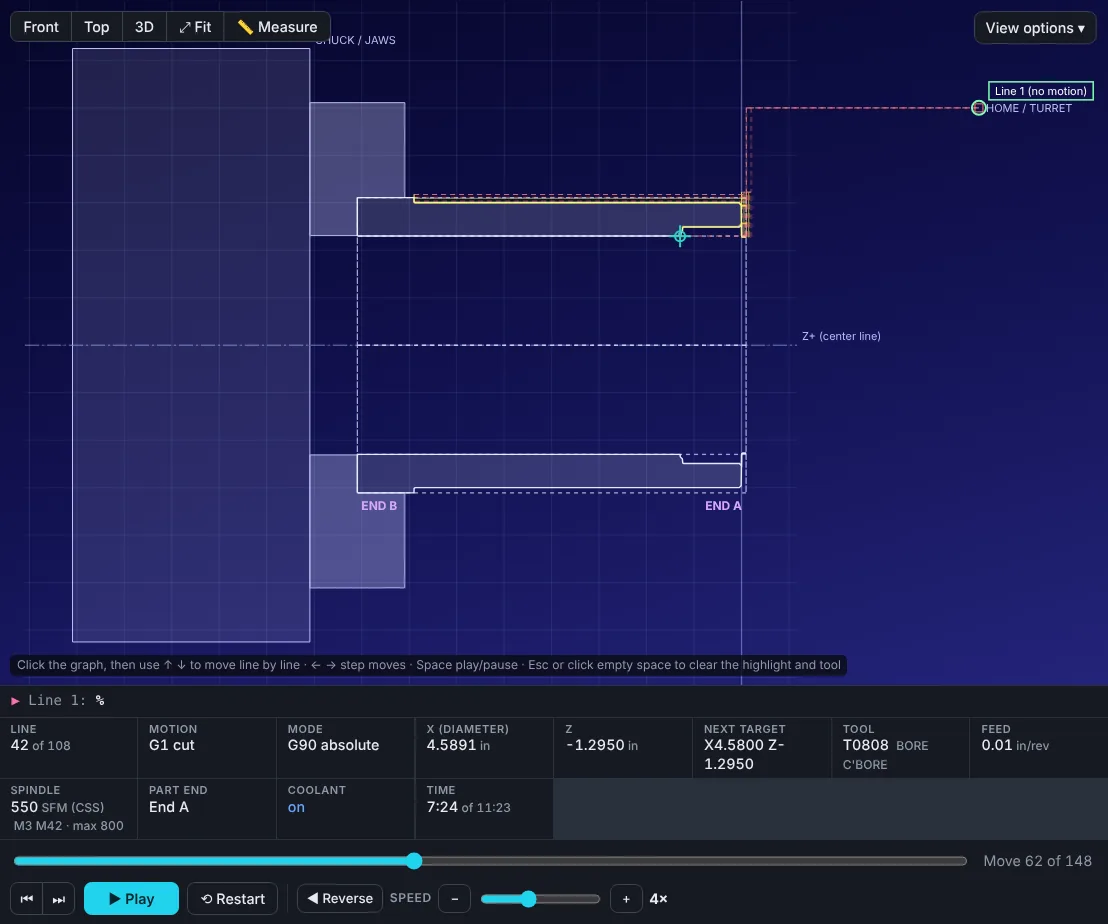
⚠ Catch problems first
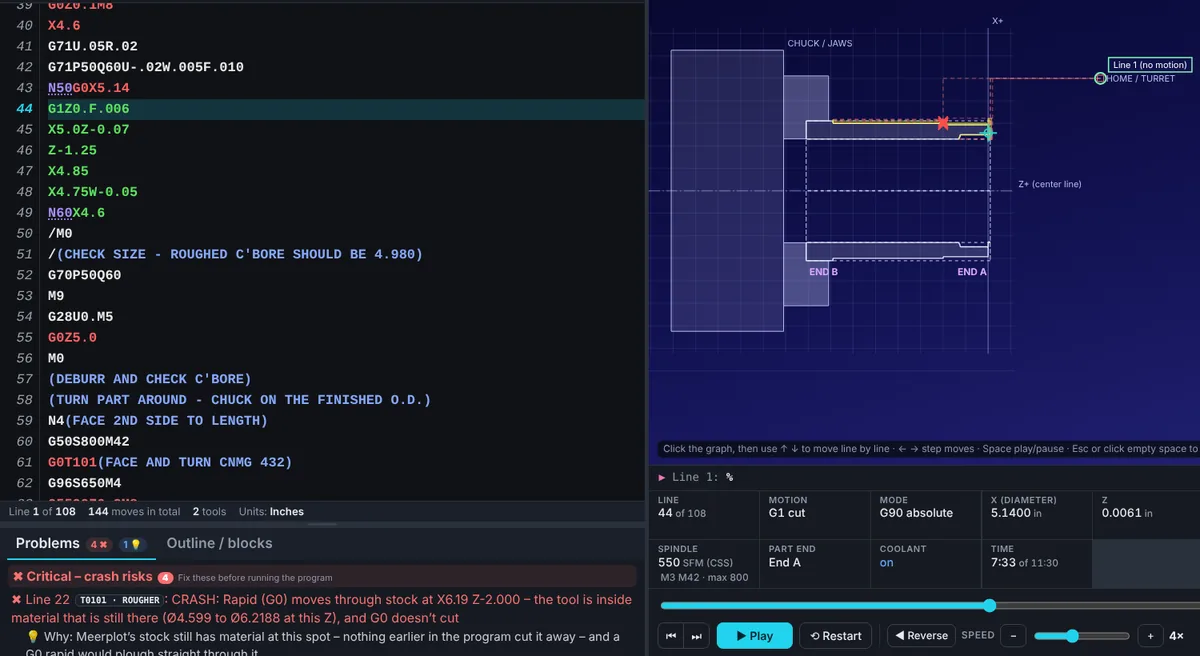
Rapids through material, crashes into the chuck, drills off center, missing coolant, feeds and speeds that don’t make sense. Each problem says what’s wrong and why – click it to jump to the line.
🔧 Your real tools
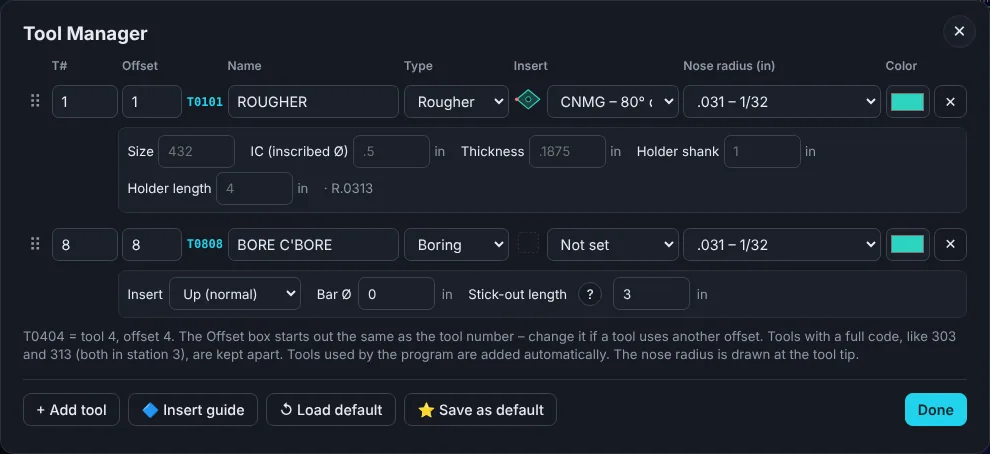
Set up inserts, nose radius and holders in the Tool Manager, and they’re drawn the way they really cut.
✏️ Draw a part, get the program
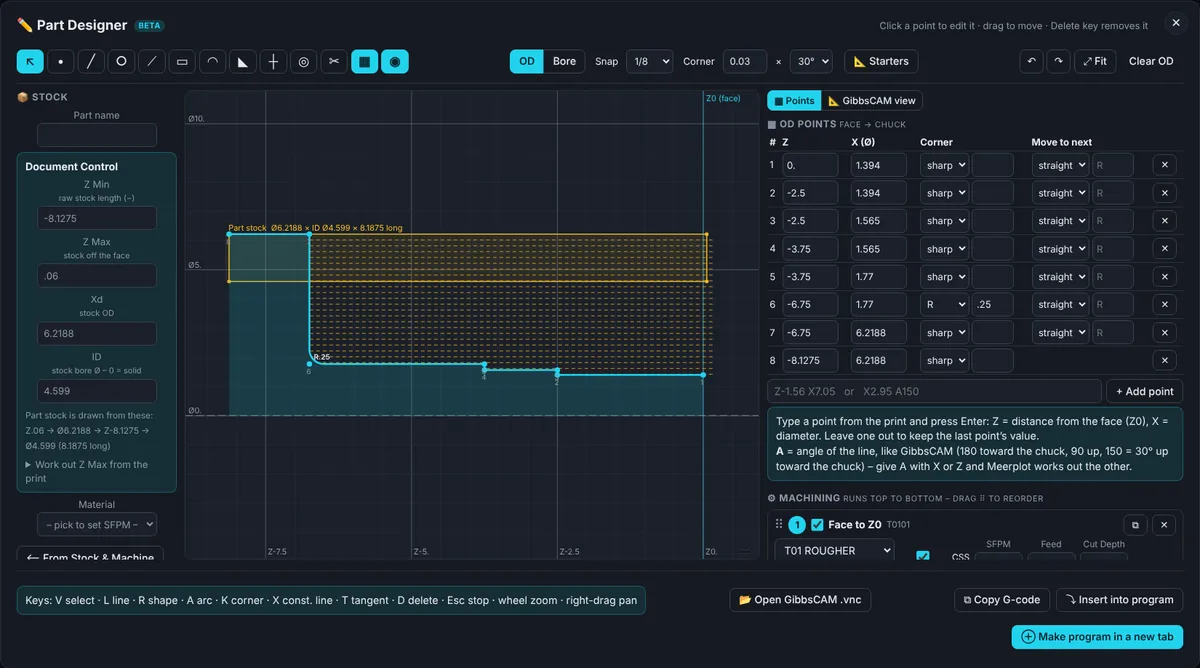
Part Designer: type the points from the print (or open a GibbsCAM .vnc), pick the operations, and it writes the G-code for you. Blueprint → Part can read the dimensions from a PDF or a photo of the drawing.
What’s new
The newest changes. Inside Meerplot: ⚙ Settings → About & what’s new for the full list.
Questions
Do I need to install anything?
No. Meerplot.exe is the whole program – just double-click it. It uses Microsoft Edge to draw its window, which comes with Windows 10 and 11.
How do I get updates?
Meerplot checks by itself when it opens and every hour. When there’s a new version, an ⟳ Update button appears at the top – click it and Meerplot updates in a few seconds. Your tabs, tools and settings stay.
Where are my programs and settings kept?
Your G-code files save wherever you choose, like any other file. Meerplot’s own settings, tabs, tools and macros stay on your computer and are backed up every day – ⚙ Settings → Open the backups folder shows them.
Moving to a new computer?
On the old one: ⚙ Settings → Backup & Restore → Download backup. Copy that file and Meerplot.exe to the new computer, open Meerplot there, and use Restore from a backup.
Does it need the internet?
Only to download it and to get updates. Everything else – simulating, checking, Part Designer, reading drawings – works offline.
Something isn’t right?
Click 💬 Feedback at the top of Meerplot, or ⚙ Settings → Report a problem – it includes the version and the details needed to fix it.